Everyone who works for you gets their own login. You send an invitation to their email address, they pick their own password, and from then on the schedule shows who is doing what, time entries land against the right name, and you can take that access back when they leave.
Send the invitation
- Open Team. It sits in the Configuration group in the left sidebar.
- Click Invite Team Member, at the top right.
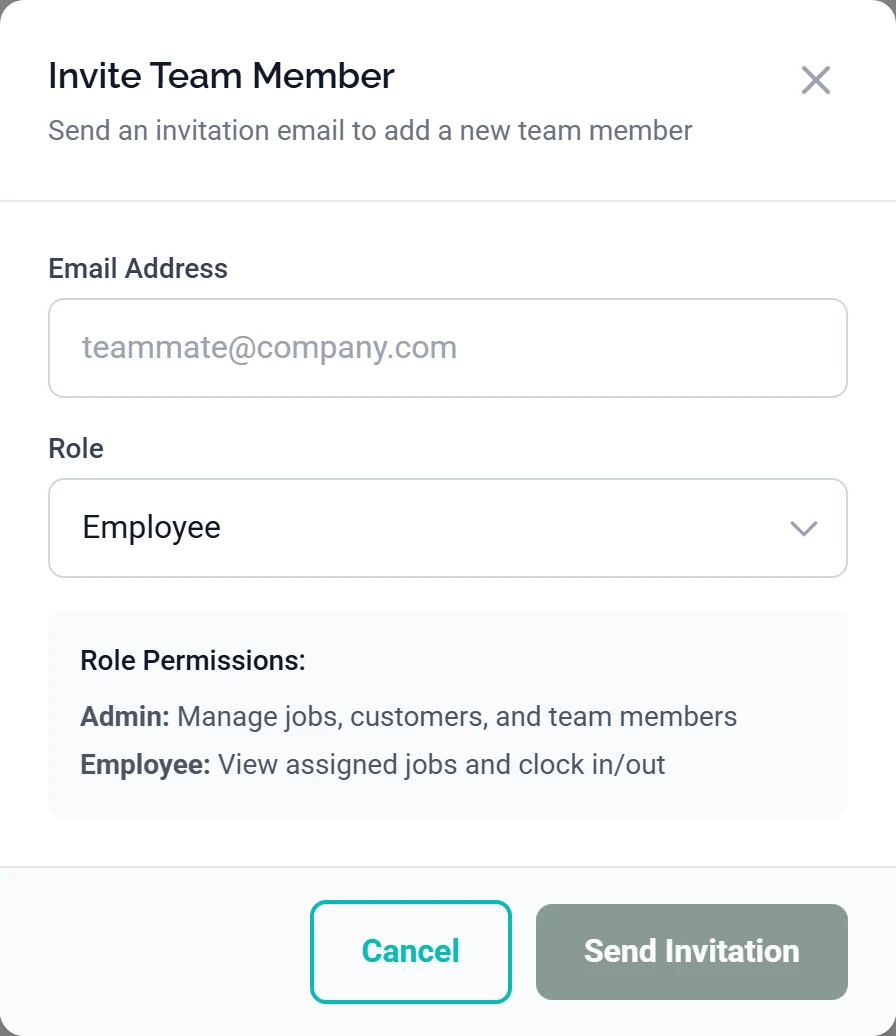
Taken while signed in as an admin, so Owner is missing from the dropdown and from the summary box. An owner sees a third option. - Type their work email into Email Address. That is the address they will sign in with, and the only place the invitation goes. There is no link for you to copy and send yourself.
- Pick a Role. The grey box underneath summarises what each one gets.
- Click Send Invitation. It reads Sending..., then Sent!, then the box closes itself.
Two messages that mean you are already halfway there. “This email is already an active team member” means they have a login. “A pending invitation already exists for this email” means you invited them before, so use Resend rather than sending a second one.
The three roles
| Role | What they get |
|---|---|
| Owner | Everything, and the only role that can set permissions or manage another owner. |
| Admin | Every page, including Team and Settings. Cannot invite or promote anyone to owner, cannot edit an owner, and cannot change permissions. |
| Employee | Seven pages: Dashboard, Announcements, Schedule, Jobs, Tasks, Chat and Compliance. No customers, no estimates, no pricing. |
Owner only appears in the list if you are an owner yourself. As an admin you get Admin and Employee and nothing else, both here and on a member’s Edit screen. That is deliberate, not a loading problem.
Most people you hire are employees. Admin hands over every page, Team and Settings included, so if someone only needs customers and estimates, leave them an employee and switch those two pages on instead.
What happens on their end
They get an email from your company with an Accept Invitation button, good for seven days. It does not say which role you gave them, so tell them separately if it matters. The password is theirs, so you never see it and cannot set one for them. Employees then walk through a three-step setup that includes the I-9, with Skip I-9 and continue for anyone who has already done one on paper. If they fill it in, their row reads Awaiting S2 until you complete the employer half, Section 2, from their I-9 / Onboarding tab.
While you are waiting
An unaccepted invitation sits in the Pending Invitations card lower down the Team page. Resend sends the email again and pushes the expiry out another seven days. Revoke cancels it, and the link in their inbox stops working straight away.
Resending kills the old link. Each resend issues a brand new one, so the link in the first email stops working the moment you press the button. If someone says “it says invalid”, tell them to open the most recent email, not the first.
An invitation past its seven days drops off the card, so if someone is not listed there and not on the roster either, their invitation has expired and the fix is a fresh Invite Team Member, not a resend. If they never got it, check their spam folder. And if the invite box said “Invitation created, but the email could not be sent”, the invitation exists and is waiting in that card.
Once they are in
They appear in the Team table with their Role badge and a Status of Active, and the row ends with View, Edit and Deactivate.

View opens their full profile, which gains a Skills Matrix tab once the person has a skill recorded, and a Permissions tab if you are an owner. Edit changes their role, pay rate and contact details, and a new role takes effect the next time that person loads the dashboard. Nobody can change their own role, Deactivate never appears on your own row, and only another owner can edit or deactivate an owner.
A refused Edit keeps the window open with your entries intact and a red message at the top saying why. A role change you are not allowed to make stores nothing at all, and if the profile saved while the applicator licence did not, the message reads “Profile saved, but the applicator license did not:” and names the reason.
Two tabs still save in silence. Licenses & Certifications and Skills & Services do not tell you when a change is refused. If a certification or a service is gone after you reload the page, it did not save. Both need owner or admin access to write.
Your team edit their own name, phone, address and photo on their own Profile page, which does not carry pay rate, hire date, emergency contacts or shirt size.
Changing what an employee can see
There are two levels, and both are owner only. If you are an admin and cannot find either, that is why.
For everyone at once. Go to Settings → Company and find Employee defaults. Two cards of switches, Page Access and Feature Access, set what every employee gets, including next year’s hires. Save Employee Defaults applies them to everyone without settings of their own, and Reset to platform default goes back to the seven pages ArborDash ships with. Use these defaults unless one person needs something different.
For one person. Open them from Team, then the Permissions tab, which exists on an employee’s page and on an admin’s but never on an owner’s, including your own, because an owner always holds the full set and cannot be restricted. The same two cards, plus Reset to Defaults to throw their own settings away.
A save confirms itself in green, and says the change applies the next time this person loads the dashboard. Take that at face value: someone with the dashboard already open keeps the pages they had until they reload it. A refused save leaves the toggles as you set them, with a red message underneath. What is on screen is not what is stored.
Page Access is the half that does the work: turning a page off removes it from that person’s sidebar and sends them back to the dashboard if they type the address in directly.
Switching Team on shows an employee what everyone is paid. The buttons that change things are hidden from them, but View is not, and a colleague’s page carries an Employment card with Pay, DOB and License on it. Grant that page to an office manager, not to a crew.
Only three of the six Feature Access switches are live today. Create own tasks and Delete own tasks control the Tasks page, and Post announcements controls Announcements. Invite owners, Manage billing and Manage permissions are not read anywhere yet. Those three are decided by the person’s role, so use the role rather than the switch.
When someone leaves
- Go to Team and find their row.
- Click Deactivate.
- Confirm in the Deactivate Team Member box, which warns that they lose dashboard access and that today is recorded as their termination date.
They drop off the active list and into the Deactivated Members card lower down the page, where Reactivate brings them back. Nothing is deleted: their jobs, time entries and messages all stay on file.
What stops, and when:
- Phone and browser alerts stop at once — incoming calls, new messages, job and task alerts. The next alert your company sends already leaves them out, but one already on their phone stays until they dismiss it.
- Signing in stops working immediately — the login screen tells them the account has been deactivated and to ask an owner or admin to reactivate it.
- A session already open takes a little longer — they are shut out the moment that page next asks the server for something, and at the latest when the sign-in renews itself, about an hour. A tab left open shows “This account has been deactivated”.
Email is separate, and it keeps going. Deactivating closes the dashboard and the phone alerts, but it does not unassign their open tasks or take them off automations, so a deactivated person still receives task, contract and automation email. Reassign those tasks and edit the recipient lists yourself. It does not cancel the sign-in session either, only makes the server refuse it, so if you need the cut instant, deactivate the account and then get the phone back.
If an ex-employee tells you they still got a phone or browser alert, that is a different fault from the email above, so take it to support. Blocking their alerts is built to fail towards sending, so when the check cannot run the alert goes out to everyone including them, and nothing on the Team page shows it happened.
If the deactivation fails, the dialog stays open with a red message and nothing is changed, so the person is still active.
The termination date is today in your company’s time zone, worked out from the address in your company settings. With no state stored it falls back to Eastern, which matters if you are three time zones west and deactivating in the evening. Fill your company address in under Settings.
Reactivating sends a welcome-back email, and their old email and password still work. Tell them to open the phone app once, because it registers itself for alerts again on the next launch.