Connecting QuickBooks means you stop entering the same customer and the same invoice twice. Work happens in ArborDash, the books stay correct in QuickBooks, and neither of you has to remember to copy anything across.
What you need
- A QuickBooks Online account. The desktop versions of QuickBooks do not have the connection this uses.
- Sign-in details for QuickBooks with admin rights, because you will be asked to approve the connection there.
Connect it
- Go to Integrations in ArborDash.
- Find the QuickBooks card and click Connect QuickBooks.
- You are sent to Intuit to sign in. This happens on their site, not ours, so we never see your QuickBooks password.
- Choose the company file to connect, if you have more than one, and approve the access it asks for.
- You land back in ArborDash and the card now reads Connected.
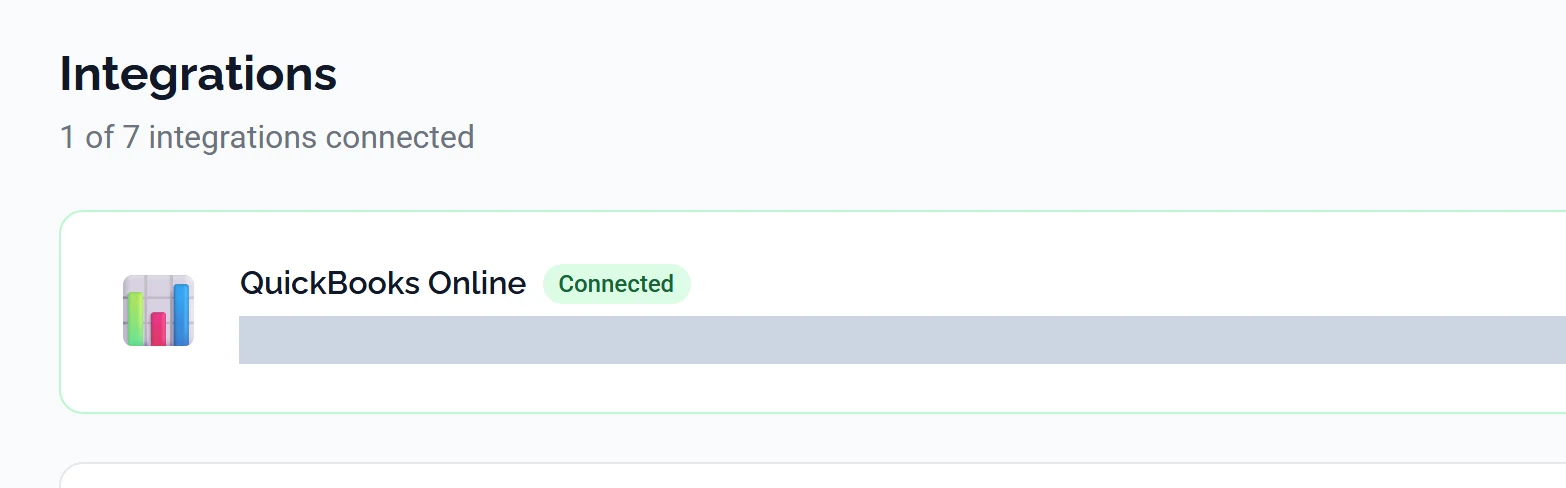
Pick the right company file. If you keep more than one company in QuickBooks, the one you choose on Intuit's screen is the one that gets your estimates and invoices. Moving them afterwards is manual work in QuickBooks, so it is worth reading that screen rather than clicking through it.
Matching up customers you already have in both
If you have been using both systems separately, the same customer may exist in each. Before you let invoices flow, go through your customer list and check for duplicates: the same person under a slightly different name, or one with a middle initial and one without.
Sorting that out at the start takes an hour. Sorting it out after six months of invoices have attached themselves to the wrong copy takes considerably longer.
Keeping your services in step
QuickBooks calls your services items, and an invoice line has to point at one for the money to land in the right account. Under Settings → Services & Items you can see which of your services are linked to a QuickBooks item.
There is no push-everything button. Tick the services you want in the checkbox column — the tick box in the header row selects the whole category at once — and a blue bar appears above the list with a Push to QB button showing how many you have chosen. You can also go the other way and pull existing QuickBooks items in as ArborDash services, which is usually the faster route if your item list is already tidy.

If you skip this, invoices can still sync, but your profit and loss lumps everything into one bucket and stops being able to tell you which services actually make money.
If it stops working
Usually the cause is your own browser session having gone stale, often after a password change, rather than the integration itself. The symptom is telling: several unrelated things fail at once, not just QuickBooks.
Sign out and sign back in first. That fixes it far more often than anything else, and costs you thirty seconds. ArborDash will normally spot this and show you a message asking you to sign in again.
If QuickBooks itself has genuinely disconnected, the Integrations card will say so. Intuit expires the connection periodically for security, and reconnecting is the same steps as above.
Reconnecting does not lose anything. Links between your records and QuickBooks records survive a reconnect. You are renewing permission, not starting over.
Common questions
Will connecting overwrite my QuickBooks data?
No. It adds and updates records that come from ArborDash. It does not delete your existing QuickBooks history.
Can I disconnect later?
Yes, from the same Integrations card. Anything already in QuickBooks stays there; the two simply stop talking.
Does it work with QuickBooks Desktop?
No. QuickBooks Online only.
Why did one invoice fail to sync when the rest were fine?
Usually one field QuickBooks insists on and ArborDash does not, most often a customer with no billing address, or a line pointing at an item that has been deleted in QuickBooks. Open the invoice and the error is shown on it.
I have two companies. Can I connect both?
Each ArborDash account connects to one QuickBooks company file. Two genuinely separate businesses need two ArborDash accounts. Email [email protected] and we will set that up properly.