A job needs a date and a crew before anyone can drive to it. Those are two separate settings and you can do them in either order. Once a job has both, it sits on the calendar in that crew's colour and appears in that crew's day on their phone. A date on its own is enough to change the status to Scheduled.
Drag the job onto the calendar when you are laying out a week. Use the job's own Schedule tab when you are working on one job, and whenever you are on a phone, because dragging does not work there at all.
Set up your crews first
A job will schedule with no crew, but it lands on the calendar as Unassigned and appears on nobody's phone. Go to Crews, click Add Crew once per team, and fill in Crew Name, Crew Color and Team Members. Pick colours you can tell apart across a room, because colour is how you read the calendar. A crew member only sees jobs for the crews they belong to.
Plan Route at the top of the Schedule page does not appear at all until you have at least one crew. That is the usual reason people cannot find it. It works out the driving order of one crew's stops, which is a separate step from putting the work on a day.
Drag it onto the calendar
Dragging needs a mouse and a window wider than about 1024 pixels. On a phone, use the job's own Schedule tab, in the next section, instead.
- Open Schedule. The Day, Week and Month buttons are in the controls bar above the calendar, with arrows and a Today button on the left. Week shows the shape of the week, Day is where start times live.

The view buttons, the crew filter and the confirmation filter all sit in this one strip. - Find the job. Everything waiting for a date is in the Unscheduled Jobs card, below the calendar. Each card shows the customer, the address, the services and Est. hours, and there is a search box for when the list is long.
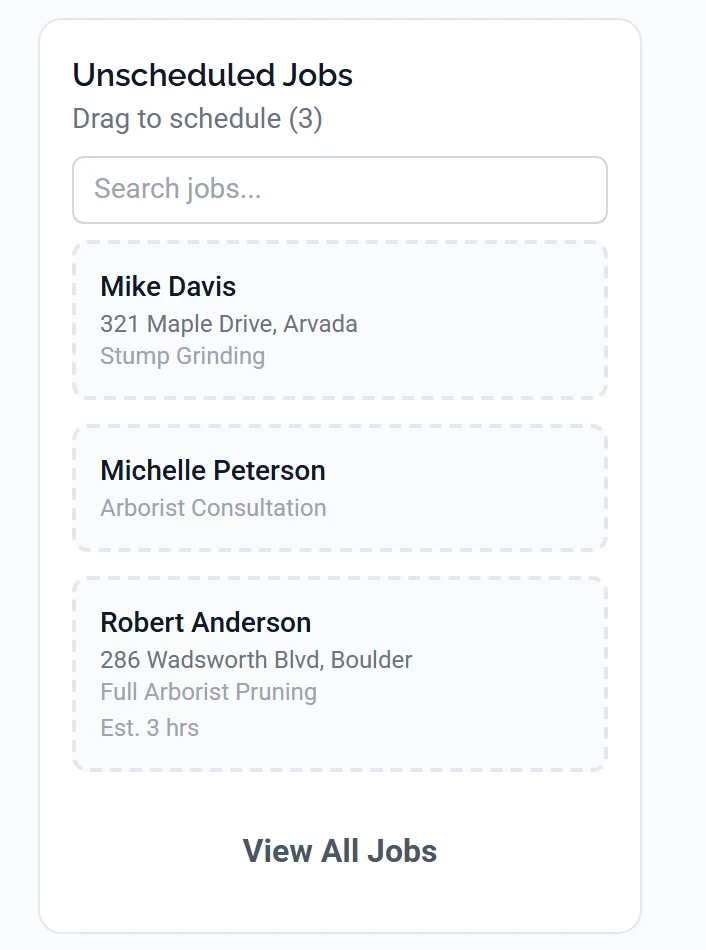
- Drag the card onto the day you want. The square you are over highlights as you cross it. Let go and the job is saved immediately. There is no Save button on the calendar.
- For a start time, drop it in Day view, where the calendar is a column of hour rows from 6 AM to 8 PM. Dropping a job on the 9 AM row makes its start time 9:00. A start outside those hours has to be typed on the job form.
- Check the result. The job leaves Unscheduled Jobs and its status becomes Scheduled. The Scheduled Jobs list underneath shows it with its time and its crew.
Dropping into Week or Month view sets the date and no time. The job reads Time TBD in the list, and in Day view it sits in a strip at the bottom headed Unscheduled Time instead of in the timeline, which looks almost identical to the Unscheduled Jobs tray it came out of. No drop sets an end time in any view either, so Duration on the job form stays empty until you type one.
Dragging any job sets its status to Scheduled. The calendar shows every job that is not cancelled, so one already marked In Progress or Completed is on there too, and moving it to a new day puts it back to Scheduled. To shift a job that is already underway, change the date on the job form.
Drag a job that is already on the calendar to move it. To take it off, click it and choose Unschedule. On a single-day job that clears the date and both times, puts the status back to Unscheduled, pulls the job out of any route, and returns it to Unscheduled Jobs. On a multi-day job it clears that one day's times and leaves the rest of the job where it is.
Or schedule from the job itself
- Open the job. While its badge reads Unscheduled or Estimated, the main button reads Schedule Job and opens the edit form with the Schedule tab already showing. Otherwise click Edit Job.
- If you came in through Edit Job, go to the Schedule tab, third along after Details and Property Map.
- Leave the toggle on Specific Date and fill in Date.
- Set Start Time and End Time. The grey Duration line underneath does the arithmetic.
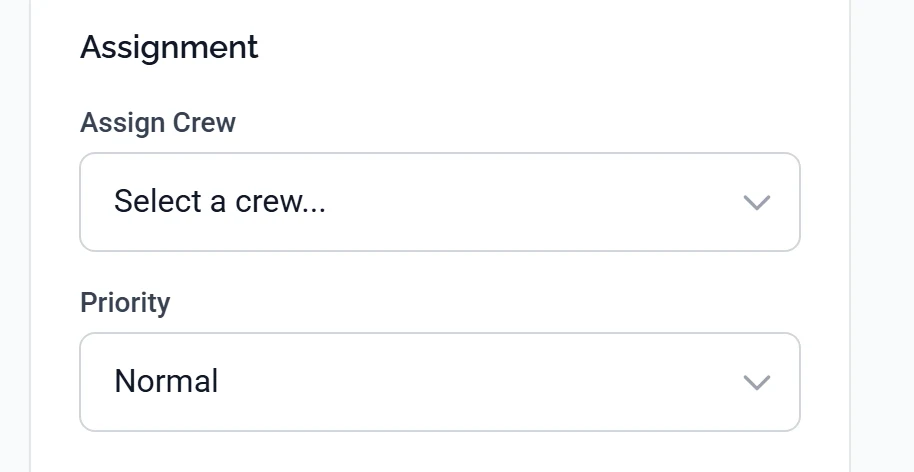
- Assign the crew. An Assignment card appears in the right-hand column. Pick the team in Assign Crew and set Priority while you are there.
- Click Update Job, or Create Job on a new one, at the top right.
Assign Crew exists only on the Schedule tab. The Assignment card is not drawn on Details or any other tab, which is why people look there and conclude crews cannot be set. The Confirmation card is on the same tab for the same reason.
No firm day yet? Switch the date toggle to Month Only and pick the month. That clears both times, so a job that already had 8 AM to noon on it loses them and they have to be typed again when the real day arrives. The job counts as Scheduled straight away, but deliberately stays in Unscheduled Jobs with a purple Target line until it has a real day.
To hand a batch of work to one team, tick the jobs on the Jobs page and use Assign Crew... in the bar that appears.
You cannot assign a crew from the calendar. Dragging changes the date and the hour, nothing else. When a day is split into columns by crew, each column highlights as you drag across it, but a job dropped into another crew's column jumps back to its own as soon as the calendar refreshes.
Why a new job says Confirm instead of Start Work
In the Confirmation card, Requires customer confirmation starts ticked. Until somebody marks the job confirmed it is drawn on the calendar with a dashed amber outline and a small amber ?, and its main button reads Confirm rather than Start Work.
Scheduling a job sends nothing to the customer, so that card is your record of having agreed the date rather than a message to them. Clear it by ticking Confirmed on the job form, or by clicking the amber Unconfirmed badge on the calendar.
A Job Reminder automation, on the Automations page under Configuration, notifies customers before a scheduled job. You tick the timings you want, from 1 hour to 3 days ahead, and it goes out by email and in the app unless you add SMS to its channels. Check whether one is switched on there before you send a reminder by hand.
Reading the calendar
The strip of dots under the controls bar is the legend, one colour per crew. A day tinted red in Week view is one you are closed, either a holiday or a non-working day from your business hours, with the reason printed on the day.
The crew dropdown filters Unscheduled Jobs as well as the calendar. Pick a crew to plan their week and the tray empties to No pending jobs, because most of the backlog has no crew on it yet, and nothing on screen connects the two. Set it back to All Crews before you start dragging.
The Unscheduled Jobs card shows at most 50 jobs, and nothing on screen says so. The count beside the heading is the count of what it fetched, not your real backlog. With more than fifty waiting, treat the Jobs page as the true list.
Completed, invoiced, paid, cancelled and in-progress jobs never appear in the tray, even with no date on them.
When a dialog stops the drop
A drop can stop with one of three dialogs. Each lists what it found and offers Cancel or Schedule Anyway, so nothing is blocked outright. Only Dependency Warning runs on a job with no crew on it yet.
- Dependency Warning means the job is chained behind another that is not finished, and it names the other one. Jobs get chained by ticking two or more on the Jobs page and clicking Chain.
- Schedule Errors is always a licence problem: nobody on the crew holds a licence the work needs. The licence comes from the services on the job, through the equipment those services require, so it can name one you never picked yourself.
- Schedule Warnings means somebody is marked unavailable, the crew is over its jobs-per-day or hours-per-day limit, or equipment the work needs is logged somewhere else. The availability check only looks at people with Enable Availability switched on, on their Availability tab under Team.
When it does not work
The job snapped back, or nothing happened
A failed save puts a red bar above the calendar reading Failed to schedule job with the reason after it. Still loading your company means the page had not finished loading, so wait a second and drag again.
I cannot drag anything
Crew members can see the schedule but not change it, and neither can an owner or admin with Crew View Mode switched on, on the Account tab of your Profile page. Turn it off and dragging comes back, along with the crew dropdown. An owner or admin in Crew View Mode still sees the Unscheduled Jobs card, so seeing the tray is not proof that dragging works.
My crew says the job is not on their phone
Check that the job has a date, that Assign Crew names their crew, and that the person is in that crew's Team Members list. Crew membership is what puts a job on somebody's phone.