A job is the record that carries a date, a crew and the work to be done. Accepting an estimate does not put anything on your calendar by itself, and which step comes next depends on how the customer said yes.
| How they accepted | What happens | What you do |
|---|---|---|
| In the portal, from the emailed link | The job is created as they accept | Find it and schedule it. Do not convert it again. |
| Phone, text, email, in the driveway | Nothing is created | Use Convert to Job on the estimate |
Look before you convert. Nothing warns you if a job already exists. Convert an estimate the customer accepted in the portal and you get a second job for the same work, on the schedule twice and invoiceable twice. Check the Linked Transactions card on the estimate first, and search the customer on the Jobs page as well, because a job stops being listed on the estimate once somebody has saved it from Edit Job. If you do end up with two, the small × in Linked Transactions only unlinks a job without deleting it, so open the spare from the Jobs page and delete it there.
If the customer accepted in the portal
The job is already made. Find it, and check what the customer agreed to.
- Go to Estimates and open the estimate. Its badge reads Accepted.
- Read the green Accepted panel under the page heading. It gives the name of the person who signed, the date and their signature. If they declined optional lines, a second line appears with the total they accepted and how many lines they turned down. On a straightforward acceptance there is no second line.
- Scroll the right-hand column to Linked Transactions. The job is listed under Jobs with its status and total. Click its name to open it.
- Give it a date and a crew. See What the job still needs.
Four things about the job the portal builds:
- Only the lines they kept — the ones they unticked are not on it, and the total is the figure they signed for.
- No date and no crew — it counts as Unscheduled until you set one.
- The address is the customer’s first saved property — not necessarily the one on the estimate. Check it before the crew drives anywhere and fix it on the job if it is wrong.
- Your crew notes are in Internal Notes (Office Only) — with a line naming the estimate the job came from.
If an accepted estimate lists no job under Linked Transactions, the automatic step did not complete; convert it by hand with the steps under If they accepted any other way.
Where the job is before you schedule it
A job with no date does not land on a day. On the Jobs page, click the Unscheduled Work tile or set the status filter to Unscheduled. On the Schedule page it sits in the Unscheduled Jobs panel, where you can drag it onto a day.
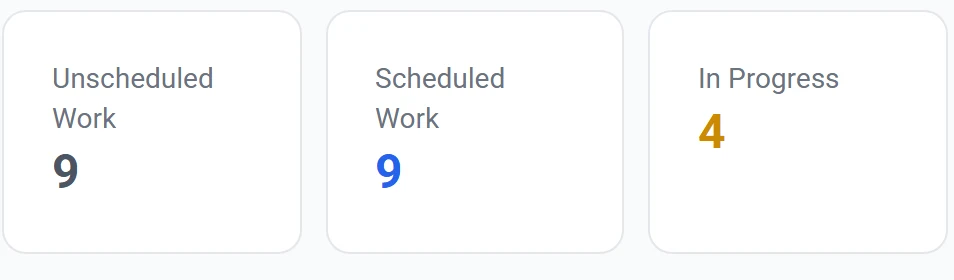
The badge inside Linked Transactions prints the status as it is stored, so the same undated job can read pending or approved there while the Jobs page calls it Unscheduled.
If they accepted any other way
Nothing was created, so you make the job yourself.
- Go to Estimates and open the estimate.
- In Quick Actions, in the right-hand column, click Mark Accepted. The badge changes to Accepted and the status is written to QuickBooks. Not required before converting, but it keeps your estimates list honest. If QuickBooks cannot be reached, a red message appears above the tabs and nothing changes.
- Click Convert to Job. On an accepted estimate it is the first button in Quick Actions.
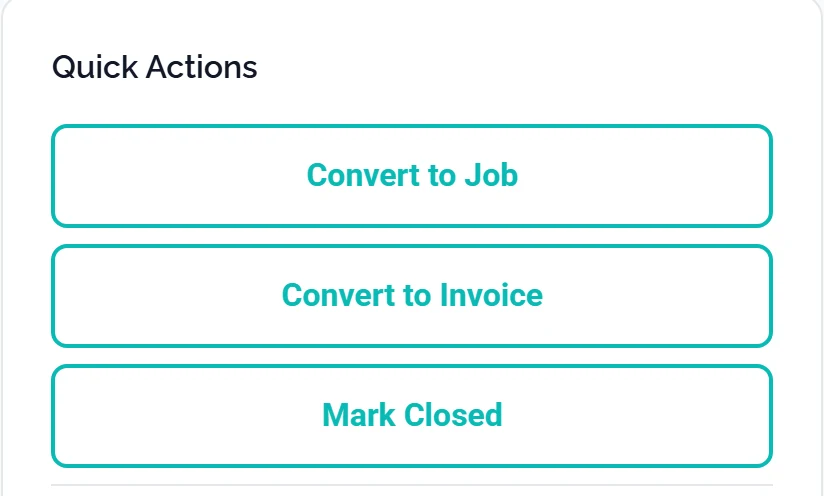
Every button in this card looks the same, so read the labels rather than hunting for a green one. - The job form opens in a new browser tab, headed Create New Job with a blue From Estimate badge. If that badge is missing, nothing was carried over; close the tab and click Convert to Job again.
- Check the Details tab. The customer, the property and every service line with its details and price are already filled in. Read the Service Type box on each line: one reading Select service... was not matched to anything in your services list, so pick one now. The line saves either way, but with that box empty it is not attached to any service.
- Go to the Schedule tab and set the date, times and crew.
- Click Create Job, top right. You land on the new job’s page.
What comes across when you convert by hand
| On the estimate | Where it lands on the job |
|---|---|
| Service address | Property. If that address is not saved as a property yet, one is created when you save |
| A whole-estimate discount | Apply Discount, set to Entire Job, plus a line in Internal Notes (Office Only) recording it |
| Notes to Customer | The Note to crew box |
| Crew Notes (internal) | Internal Notes (Office Only) |
| The property map | The job’s Property Map tab, with the same placements |
Your introduction paragraph and terms and conditions do not come across. Photos do not either, at first: on an unsaved job the Media tab reads “Save the job first to upload photos and documents.” Once saved, that tab shows the estimate’s photos and documents alongside the job’s own.
“Note to crew” is not private. The box is on every job, whether you converted the estimate or the portal did. Its own hint text suggests gate codes and parking instructions, but whatever you type there is shown to the customer in their portal, under Notes on their work list. What came over from Notes to Customer was written for them anyway. Gate codes, the dog and the neighbour belong in Internal Notes (Office Only).
What the job still needs
Three things the estimate never had to answer, all on the Schedule tab:
- When — Date, with Start Time and End Time. If you only know the month, switch from Specific Date to Month Only. Tick Multi-day job for work that runs past one day.
- Who — Assign Crew, in the Assignment card on the right of that tab. Leaving it on Select a crew... is allowed.
- How urgent — Priority, under the crew.
Only the customer is required, so you can create the job now and schedule it later. Picking a day moves it from Unscheduled to Scheduled. A Month Only job is the exception: its badge reads Scheduled while it stays in the Unscheduled Work count and the Unscheduled Jobs panel until somebody gives it a day.
Changing a price here changes the estimate too. When you save, the job’s service lines are written back into the linked estimate in QuickBooks, so a price or quantity you correct here also changes the estimate the customer signed. Nothing asks you first on that first save, so tell the customer if the price has moved. Edit that saved job once more and a Send Updated Estimate? window offers Not Now or Send Updated Estimate. You get that offer once. After it the job is no longer tied to the estimate, so later price changes stop reaching it and you have to edit the estimate yourself. If the write-back fails, the job is still saved and a message tells you to open the estimate and check its lines.
Common questions
Do I need QuickBooks connected for this?
Yes. Convert to Job only appears on an estimate that ArborDash can read from QuickBooks. On one it cannot read, a single grey line replaces Edit, Request Photos and Send to Customer: “This estimate is not in QuickBooks yet, so editing and sending are unavailable.” Quick Actions drops Convert to Job with no explanation. That grey line also appears when the estimate exists in QuickBooks but could not be fetched, so it is not proof it never synced. Check the Integrations page, then reload the estimate.
Why is the job total lower than the estimate total?
Sales tax. The estimate’s Total includes it and the job’s Total never does, so the job total should equal the estimate’s Total less its Tax row. Do not compare it against the estimate’s Subtotal, which is before any discount. An estimate with no sales tax has no Tax row and the two totals should match; if they differ, a line or a price was changed on the job form.
The customer removed an optional line, but I converted by hand and it came back. Why?
Convert to Job copies every line on the QuickBooks estimate. Accepting in the portal marks it accepted there without taking the declined lines off, so only a job the portal created knows what the customer turned down. The Accepted panel gives the number of declined lines and the total they signed for, but not which lines, and nothing else on the estimate names them. Take lines off the job form until its Total matches that accepted figure. Deleting a line from the job does not delete it from the estimate. The other option is to drop the hand conversion and open the job the portal already made.
Can I convert before the customer accepts?
Yes, on any estimate that is still live: Created, Sent, Opened or Reviewed. It is not offered on a Rejected or Expired estimate, where you use Reopen first, and a Closed estimate offers neither Convert to Job nor Reopen.
Does the customer get told the job was created?
No. Accepting in the portal sends them a confirmation email about the estimate, and your company contact address gets one whose subject line is the estimate number and the customer’s name. Nothing goes out about the job or its date, so booking the visit is still a phone call or a text.