Sending an estimate emails the customer a link to their own copy, which they can read, sign and accept from a phone.
Send it
On the estimate form, where you build it, the green button is Save & Send, which reads Send on an estimate you have not changed. On a saved estimate's page it is Send to Customer, top right, beside Edit and Request Photos. Both open Send to Customer Portal.

- Check the address. Customer Email shows what is on the customer's record. To use a different one this time only, tick Send to a different email. Their record is not changed.
- Decide what is optional. Switch Customer Can Remove on for a line and the customer can untick it in the portal, dropping the total before they sign. Any line you leave switched off is part of the price.
- Read the grey box. Total Amount, how many Optional Items you marked, and Link Expires. Treat that date as the earliest the link could stop working: every emailed link gets at least 30 days.
- Optional extras. Include Photos appears when the estimate has photos. Attach PDF copy suits customers who forward things on.
- Preview it. Preview opens Email Preview and Portal Preview tabs; Back to Send returns you.
- Click Publish & Send Email. You get Estimate Published!, the address it went to and the Portal Link.
Nothing goes out until you click Publish & Send Email. Preview sends nothing, and Cancel leaves the estimate as it was.
Their email carries your logo and colours, the total, the valid-until date and a View Detailed Estimate button that opens their copy, no password needed.
What the statuses mean
Eight statuses show as a coloured pill in the Status column of All Estimates. On a QuickBooks-backed row the pill is a dropdown you can change in place, though picking Sent opens the estimate instead, because sending needs an email address and the optional-line choices.
Most of the eight come from the customer rather than from QuickBooks. On an estimate QuickBooks still has as pending or sent, the customer's portal link wins: Opened, Reviewed, Accepted and Rejected all come from there, and Sent follows from the link existing. So the pill can read Accepted while QuickBooks still calls the estimate pending.
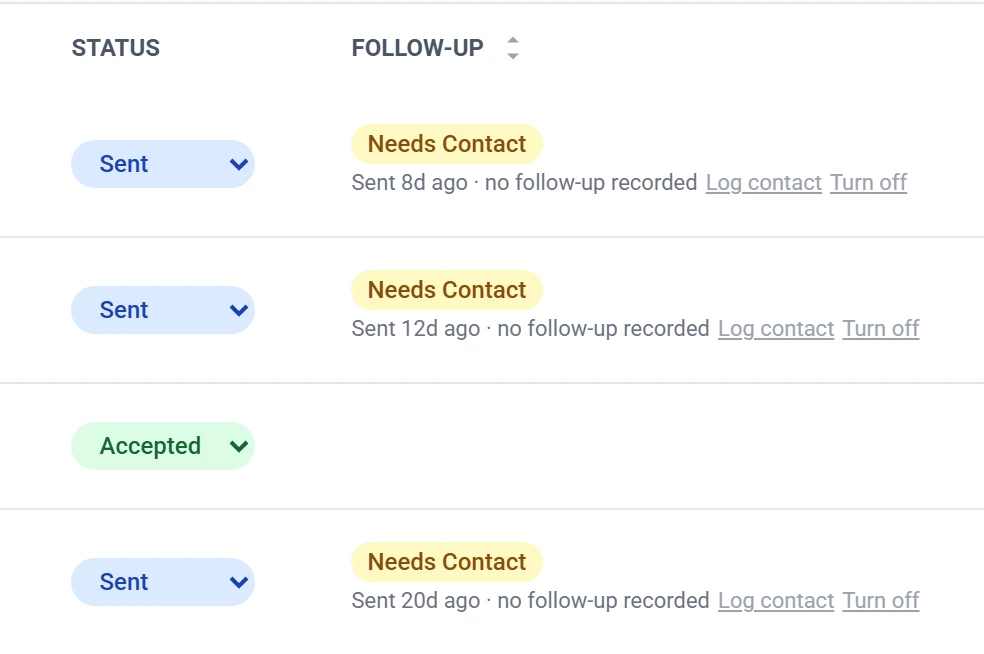
| Status | What it means |
|---|---|
| Created | Saved, nothing sent. Private to you. |
| Sent | The estimate is on the customer's portal. A publish whose email failed also reads Sent, so it is not proof the email went. |
| Opened | The email itself was opened. |
| Reviewed | They opened the estimate page and read it. |
| Accepted | Agreed. |
| Closed | Accepted and fully invoiced. It can no longer be sent, so Send to Customer disappears. |
| Rejected | Turned down. |
| Expired | The valid-until date passed while it was still Created or Sent. |
Do not read anything into Opened. It needs the customer's mail app to download a tiny invisible image, and most phones and mail apps block that by default. Someone can read your email, forward it to their partner and never show as Opened. Trust Reviewed, recorded on your own page when they open the estimate.
Sending it again
On one the customer has not accepted, open it and click Send to Customer again. A fresh email goes out with a fresh link, and the link in the email before it keeps working, so that message still opens.
On one they have already accepted, the send is refused
Open the estimate and click Send to Customer. The window opens looking no different, so press Publish & Send Email. That press is what brings up the refusal: nothing is emailed and nothing changes. The button greys out and an amber panel appears headed This estimate has already been accepted, naming who accepted and when. Two ways on:
- They only want their signed copy again — close the window and use Copy Magic Link in Quick Actions. It puts a working link on your clipboard, leaves the acceptance alone, and is good for at least 30 days from the moment you copy it, whatever the estimate's expiry date says.
- You need them to accept a second time — click the red Send again and ask for a new acceptance inside the panel. It is a separate button on purpose.
What the second choice costs. The portal goes back to awaiting acceptance, so until they sign again you hold no current acceptance. The green Accepted panel and its signature move down into an amber Previous acceptance card, which keeps the signer, the date, the accepted total, the declined lines and the signature image. The Activity tab records the replacement.
The badge at the top will still read Accepted. It is the estimate's status in QuickBooks, which this send does not touch. The Previous acceptance card says so when it happens.
Estimates that have expired
Reopen, in Quick Actions and in the list's row menu, changes the status in QuickBooks and nothing else, so it emails nobody and the customer's link still works. On an estimate whose valid-until date has already passed it drops straight back to Expired and looks as though the button did nothing, so Edit the date first, then Reopen. With every ticked row expired, the bulk Send button becomes Update & Resend, which opens Update Expired Estimates for the new date, then emails every ticked customer.
Sending several at once
Tick several rows, then Send in the bar above the table. Read the two lists at the end. Skipped (no email address): names customers with no address on file. Not sent: names each estimate refused, with the reason. A bulk send never replaces an acceptance and never asks whether to, so an already-accepted one lands there rather than going out, as does one set to accept without a signature, because the bulk path cannot carry that setting. Open those and send them from the estimate page.
When they accept
The customer types a name into Print Name (required), signs, and clicks Accept & Sign, which does nothing until both the name and the drawing are there. A green Accepted panel appears across the top of your estimate with the signature image, reading “Accepted by Jennifer Walsh on 3/14/2026”. If they unticked optional lines it also shows the total they accepted and how many they declined. Invoice against the accepted total, not the one on the original estimate.
The signed name is whoever held the pen. The panel shows what was typed into Print Name, so a spouse, a tenant or a property manager signs under their own name. Estimates accepted before the typed name started being recorded show the customer's name whoever signed, and that cannot be corrected, so an older Accepted by line is not proof of who signed.
The customer gets a confirmation email, an Estimate Accepted notification appears in the dashboard, and an email goes to your company contact address (Settings, under Contact Information). Its subject names the customer, not whoever signed, so an estimate Jennifer Walsh signed for Robert Walsh sends Estimate #1042 Accepted by Robert Walsh.
A job is created for you. A portal acceptance builds the job automatically, with the customer, the property and the accepted services and prices, ready to schedule. It appears under Linked Transactions on the estimate. Look there before you click Convert to Job, or you will have two jobs for one piece of work.
Whether a signature is asked for is set per estimate, with the Require Signature switch on the form's Settings card. With it off, one click on Accept Estimate accepts, and the panel reads “Accepted on 3/14/2026, signer name not recorded”.
When it goes wrong
There is no Send button, only a grey line
“This estimate is not in QuickBooks yet, so editing and sending are unavailable.” means ArborDash has no QuickBooks copy of it in hand, either because it never synced or because it could not be fetched this time, and the page does not tell the two apart. Check the connection on the Integrations page, and if it genuinely never synced, Duplicate Estimate saves you retyping it. Preview also does nothing, and Download PDF opens “Estimate not found or QuickBooks not connected.”
“Still loading this estimate's send settings”
The window will not open until this estimate's own Require Signature and Hide Price in Email settings have loaded, because sending without them could put the price back into the customer's email or ask for a signature the estimate does not need. Press Send to Customer again in a moment; that second press really does try again. The banner sits above the row of tabs, so scroll up if you clicked from Quick Actions.
“Customer email is required”
Type an address into Customer Email to send now, then add it to the customer's record.
“Published, but the email did not send”
The estimate is on the portal but the email failed, and QuickBooks is not told it was sent. The window gives you the link to send yourself. Check Settings, Domain & Email, then publish again.
“The customer's existing acceptance could not be filed”
Nothing was sent, nothing changed, and the acceptance is intact. Tell whoever administers your account: it is also what appears when the software has been updated but the matching database change has not.
They say it never arrived
Ask them to check their junk folder; a first email from a new sender often lands there. If it is genuinely missing, use Copy Magic Link and text it to them. The Activity tab's Activity & Lifecycle timeline shows every send, the address and the time.
Common questions
How long does their link last?
At least 30 days from the day you send it, and until a week past the estimate's expiry date when that is further out. Accepting is a separate clock: once the valid-until date is more than a week gone, the link opens Link Expired and they cannot accept at that price.
Should I mark an estimate accepted myself?
Only when they really did say yes another way, on the phone or on the driveway. Mark Accepted records agreement with no signature behind it, which is what you do not want if the price is ever argued over. Text them the link and let them sign it if you can.