Open the invoice, click Record Payment, enter the amount and save. ArborDash creates the payment in QuickBooks, applies it to the invoice and brings the balance down. If that clears the invoice, the badge turns Paid and every job linked to the invoice is marked Paid as well.
Use this for money that arrived outside the customer portal: cash on the driveway, a check in the post, a bank transfer. A portal payment records itself (see below).
Two things have to be true first
- The invoice has to be in QuickBooks. On an invoice QuickBooks does not hold, the button is not there at all. A grey line at the foot of the Quick Actions card says so: “This invoice exists only in ArborDash. Editing, duplicating, voiding, deleting and recording payments are QuickBooks ledger operations, and are hidden until it is synced. You can still preview it, download it, and send it to the customer.”
- You have to be an owner or an admin. An employee login sees the button and can fill the form in, but the save is refused.
Without QuickBooks there is no way to mark an invoice paid in ArborDash. It keeps no payment ledger of its own. There is no second button and no manual override, and portal payment runs through QuickBooks too. Start with Connecting QuickBooks.
Record the payment
- Go to Invoices and open the invoice.
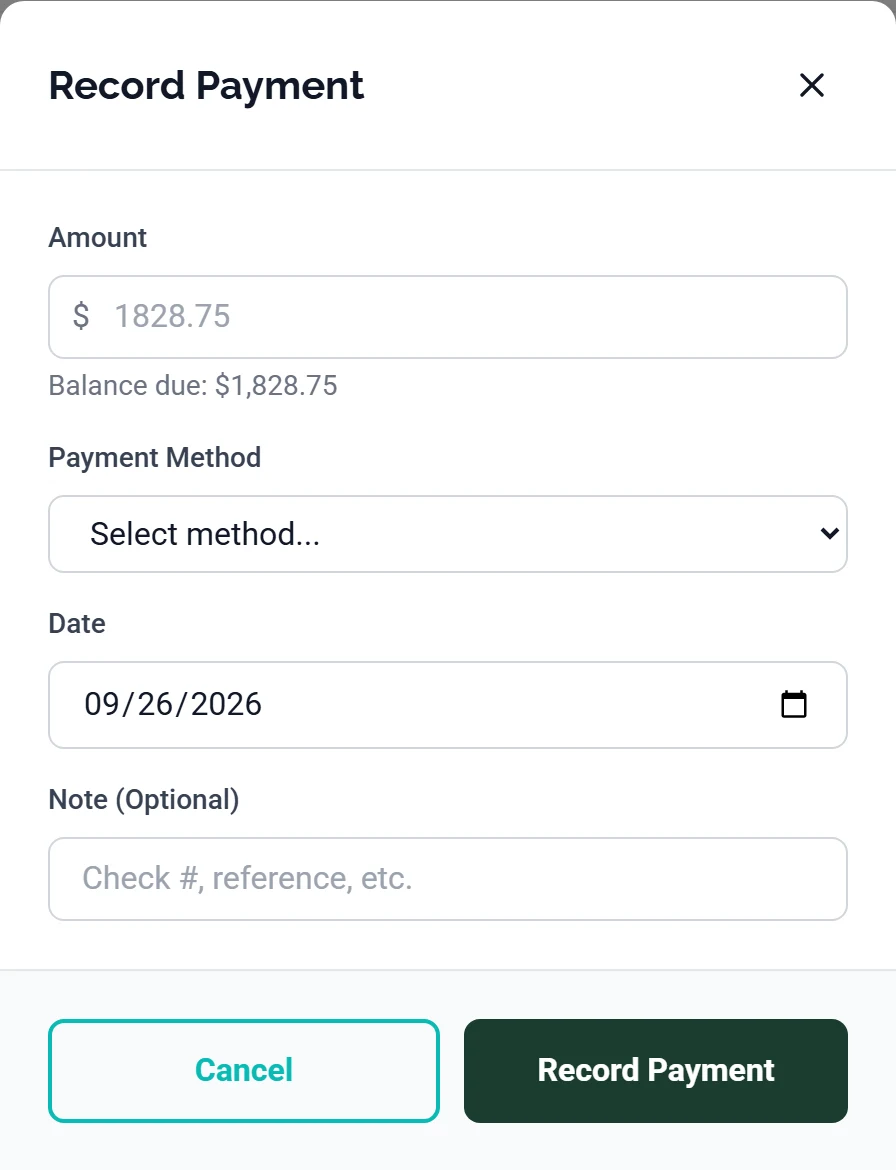
- Click Record Payment, top right. There is a second one on the Payment History card on the Payments tab, and it opens the same form.
- Enter the Amount. Leave it blank to record the whole balance. The Balance due: line underneath shows what that is. Type a smaller number for a deposit or a part payment.
- Pick a Payment Method. Cash, Check, Credit/Debit Card, ACH/Bank Transfer or Other. It starts on Select method... and you can leave it there.
- Set the Date. It starts on today. Change it to the day the money arrived, not the day you are typing.
- Add a Note (Optional). The placeholder suggests “Check #, reference, etc.”, which is what it is for.
- Click Record Payment. The page reloads with the new numbers.
The method and the note do not come back to you. Both go into the QuickBooks payment as its memo, but ArborDash never sets QuickBooks' own payment-method field. The row in Payment History is headed Payment, with the date and the amount and nothing else, whichever method you chose. To read the note again, open the payment in QuickBooks.
What changes when it saves
- The three figures across the top move: Invoice Total, Payments Received and Balance Due.
- A green row appears in Payment History, and the Payments tab label picks up a count.
- The Activity tab logs it, with the before and after amount paid and status.
- If the payment clears the balance: the jobs linked to the invoice are marked Paid too, so you do not have to close them separately. On an invoice that bills a single job, that job is named in the Linked Job card on the Details tab. If a job is still showing Invoiced after the invoice has gone to Paid, set it with the Status dropdown on its row in the Jobs list.
- Send Receipt appears in Quick Actions once the invoice is paid, and emails the customer a paid-invoice PDF. Nothing reaches them until you press it.

Part payments
Recording less than the balance works the same way, and you can record as many as you like. They add up, and nothing is marked paid until Balance Due reaches zero.
The badge will not tell you it is part paid. The status comes from QuickBooks, which distinguishes only a zero balance from a balance. So after a deposit the badge does not move. It reads Sent or Overdue · Sent, the same as it did before the money came in. Trust the Balance Due figure on the invoice, and the Bal: figure under the amount on the Invoices list. The status filter has no part-paid option either, so you cannot pull up a list of them.
If they paid through the portal
Do not record it again. When a customer pays with Pay Now in their portal, ArborDash records the payment in QuickBooks itself, marks the invoice paid, closes the linked jobs and emails them a receipt. You get a notification headed Payment Received with the invoice number. On the invoice it shows as a green Paid Online (QB Payments) badge and an Online Payment (QB Payments) row with a View Receipt link.
Two other notifications mean something is still on you. The message under the heading names the figures.
- Partial Payment — the card did not cover the balance. The invoice and its jobs were not marked paid, and the customer cannot pay the remainder in the portal. Collect the rest directly, then record it here.
- Payment Needs Confirmation — the money arrived but QuickBooks could not be reached, so ArborDash would not declare the invoice settled on a guess. Check the balance in QuickBooks: if it is zero, close it out there, and if a balance remains, collect it and record it here.
A Processing badge says the same thing on the invoice itself: an online payment came in and the invoice has not closed. Money is already on it, so record only what is still outstanding, never the whole amount again.
Overpaying
Recording a payment on an invoice that is already fully paid creates a real unapplied credit against that customer in QuickBooks. ArborDash stops you once: “This invoice is already fully paid in QuickBooks. Record this payment anyway as an unapplied credit?” Press Record Anyway only when the customer genuinely paid twice.
Typing too big a number on an invoice that still has a balance is not caught. That warning only fires when the balance is already zero. If the invoice is open, QuickBooks takes the whole amount, applies as much as the balance allows and leaves the rest sitting as a credit on that customer, with no prompt and no banner. The figures do give it away: if Payments Received is bigger than Invoice Total, the difference is a credit on that customer, which you apply to their next invoice in QuickBooks. Check the Balance due: line before you type an amount rather than after.
When it goes wrong
There is no Record Payment button
The invoice is not in QuickBooks, which the grey line on the Quick Actions card confirms. Either QuickBooks is not connected, or this invoice has never synced to it.
“Only an owner or admin can perform this action. Ask someone with those permissions to do it for you.”
Your login is an employee role. Recording a payment moves money in the company's ledger, so it is owners and admins only. The button is not hidden from employees, which is why you got this far.
“Could not verify invoice balance. Please try again.”
ArborDash re-reads the balance from QuickBooks immediately before posting, and QuickBooks did not answer. Nothing was recorded. Wait a moment and press Record Payment again. Without a confirmed balance it will not guess, because it cannot tell a normal payment from an accidental second one.
“Failed to record payment in QuickBooks”
QuickBooks rejected it, and the wording after the message is QuickBooks' own. Read that wording, because it names what QuickBooks objected to. No payment came back, and ArborDash updates the invoice only once one does, so the balance and the status are untouched.
Pressing Record Payment twice will not double-post. A retry inside the same open form carries the same reference, so QuickBooks returns the payment it already created rather than making a second one. Closing the form and starting again is a new payment, so if you are unsure whether the first one landed, check Payment History first.
The button does nothing at all, no error and no spinner
The common cause is a blank Amount on an invoice whose balance is already zero. Blank means the whole balance, the balance is nothing, and the form stops without saying so. Type the figure you took and you get the already-paid question instead.
The other cause is an invoice whose QuickBooks record could not be loaded, which you reach through the Status dropdown on the Invoices list, where setting a row to Paid is a shortcut into this form. Reload the invoice. If the Record Payment button at the top has gone, that is the real problem.
It says Overdue and nobody is late
A new invoice on Due on Receipt terms is written with the Overdue badge the moment it is created. There is nothing to fix, and it turns Paid once you record the payment.
Common questions
Can I delete a payment I entered by mistake?
Not from this form. Use Refund on the invoice, which appears once a payment is on it. For a payment you keyed in by mistake, pick Reverse in QuickBooks or Delete in QuickBooks, both marked never settled / mis-key. Refund the customer (return the money) is for money you really took and are giving back, so do not use it to tidy up a typing error.
What if they overpaid on purpose, to sit as credit?
Record the full amount. Anything above the open balance stays in QuickBooks as an unapplied credit on that customer.